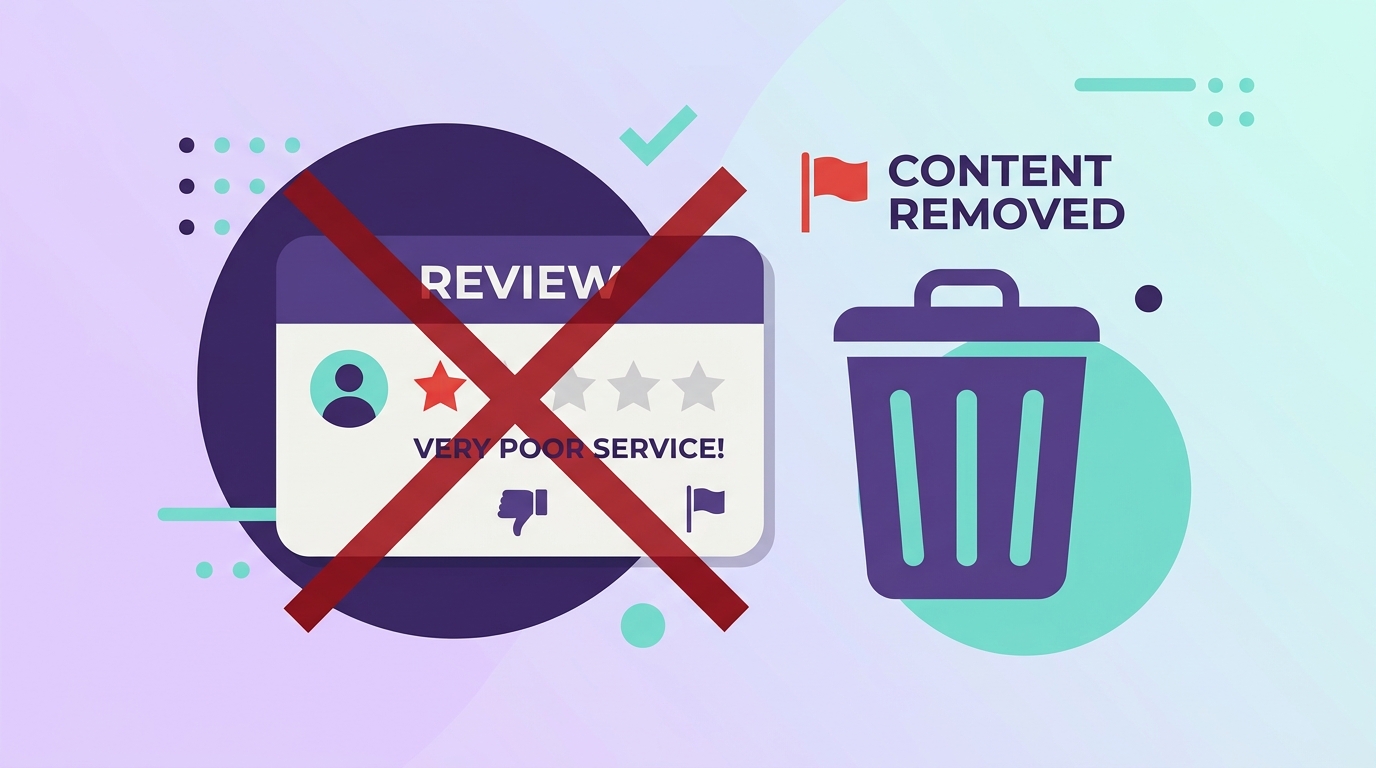
If customers are telling you they cannot find the Write a review option on your Google Business Profile, it can be confusing. You may assume that reviews have been turned off or that there is a setting you need to change.
The important thing to know is that Google does not give businesses an on/off switch for reviews. If customers cannot leave a review, there is usually another reason behind the problem.
In this guide, we’ll look at the most common reasons the review option may be missing, how to check whether customers can leave reviews, and what you can do to resolve the issue.
Can You Turn Google Reviews On or Off?
No. There is no setting in Google Business Profile that allows a business owner to manually enable or disable customer reviews.
Reviews are part of the Google Business Profile experience. If the review option is missing, the better approach is to find out why it is unavailable rather than looking for an enable/disable button.
This is also why a business cannot simply turn reviews off because it is receiving negative feedback. If a customer has a genuine experience to share, businesses generally cannot remove the feature from their profile.
Why Can't Customers Leave a Review?
If your customers cannot see the option to write a review, check the following possibilities.
1. Check That Your Business Profile Is Verified
Start with the basics: make sure your Google Business Profile has been verified.
If your profile setup is incomplete, some features may not work as expected. Sign in to the Google account that manages your business and check whether Google is asking you to complete verification or resolve an issue with the profile.
If you recently submitted your business for verification, allow time for Google's systems to process the profile before assuming something is wrong.
2. Your Business Profile May Be New
A newly created or recently updated profile may not behave exactly like an established listing straight away.
If you have only recently created your profile, give Google some time to process the listing and make sure all of your business information is complete and accurate.
You can then check the public profile again to see whether the review option has appeared.
3. Check Whether Your Business Has More Than One Profile
Duplicate listings can create confusion for both businesses and customers.
For example, you may have one profile with your current business information and another older listing that Google still recognises. Reviews may then appear on a different profile from the one you are currently managing.
Search for your business on Google and Google Maps using variations of your business name and location. If you find multiple listings for the same business, investigate which one is the correct profile rather than creating another listing.
If you believe two profiles should be combined, follow Google's available process for dealing with duplicate Business Profiles.
4. Check Your Business Information and Status
Make sure your profile accurately represents your current business.
If the profile has been incorrectly marked as permanently closed, moved, or otherwise changed, this can affect how customers interact with the listing.
Review the basic information in your Business Profile, including:
- Business name
- Address or service area
- Business category
- Opening hours
- Business status
- Contact information
If something is incorrect, update it through your Business Profile and allow Google time to process the change.
5. Check Whether Your Business Category Has Limitations
Google does not necessarily provide exactly the same features for every type of business.
Certain categories, locations, or types of listings may have different review availability or restrictions. If your business falls into a category where reviews are limited, changing random settings will not solve the problem.
If you believe your business should have reviews but the option is consistently missing, check Google's current Business Profile guidance or contact Google support for clarification.
6. It Could Be a Temporary Google Issue
Sometimes the problem is not with your business at all.
Google's services can experience temporary technical issues, and a missing review button may sometimes be related to a system problem.
Before making major changes to your profile, check the listing again later and see whether the issue continues. You can also check Google's support resources if other business owners are reporting similar problems.
How to Check Whether Customers Can Leave Reviews
Before assuming that reviews are disabled, check the public version of your profile yourself.
The easiest way is to view your business as a customer would.
Step 1: Open a Private Browser Window
Use an incognito or private browsing window, or check the profile from another Google account.
This helps you see the public listing rather than relying only on what appears in your business management dashboard.
Step 2: Search for Your Business
Search for your business name on Google or open the listing in Google Maps.
Make sure you are looking at the correct business profile.
Step 3: Look for the Review Option
Check whether you can see Write a review or a similar review option.
If it appears, customers should be able to access the review process.
If it does not appear, go through the checks above before assuming that reviews have been turned off.
Can You Disable or Hide Google Reviews?
No. A business cannot simply switch off Google reviews to prevent customers from leaving feedback.
This includes negative reviews. You cannot hide the entire review section because you received a review you do not like.
There is an important difference, however, between disabling reviews and reporting an individual review.
If a review appears to violate Google's policies, such as being spam, fake, or otherwise inappropriate, you can report it to Google and ask them to evaluate it.
That does not mean every negative review will be removed. A review can be critical or unpleasant and still be legitimate.
What If Reviews Are Available but Customers Still Aren't Leaving Them?
Sometimes the problem is not that reviews are disabled. Customers simply are not taking the extra steps needed to leave one.
A customer may need to search for your business, open the correct listing, find the review section, and decide what to write. Even someone who is happy with your service may put it off and never return.
One simple solution is to give customers a direct route to your review page.
You can share your Google review link through:
- SMS
- Your website
- Digital receipts
- Follow-up messages
For physical businesses, a Google review QR code can be even more convenient. Customers can scan the code with their phone and go directly to the review page instead of searching for your business.
Make the Review-Writing Step Easier
Getting customers to the review page is only part of the process. Some customers are willing to leave feedback but do not know how to put their experience into words.
An AI Google My Business Review Generator can help with that particular problem. Instead of starting with a completely blank review box, customers can briefly describe their actual experience and use the generated text as a starting point.
They can read the suggestion, make their own changes, and decide what they want to publish from their own Google account. The tool does not post the review for them.
What Should You Do If the Review Option Is Still Missing?
If customers still cannot see the review option after checking your profile, do not repeatedly create new Business Profiles or make unnecessary changes.
Work through the problem in order:
- Check that the profile is verified and active.
- Make sure the business information is accurate.
- Look for duplicate listings.
- Check whether the profile has recently been created or changed.
- Consider whether there may be a temporary Google issue.
- Use Google's support resources if the problem continues.
Keeping the correct profile and resolving the underlying issue is usually better than creating another listing just because the review option is missing.
Conclusion
There is no button that lets a business owner manually turn Google reviews on or off. If customers cannot find the review option, check the status of your Business Profile, look for duplicate listings, review your business information, and consider whether the profile is new or affected by a temporary Google issue.
Once reviews are available, make the process easy for genuine customers. A direct review link, a well-placed QR code, and a simple way to help customers express their own experience can remove unnecessary friction.
The goal is not to control what customers say. It is to make it easier for customers who genuinely want to share their experience to do so.
Related articles:
- How to Get More Google Reviews for Your Business
- How to Create a Google Review QR Code for Your Business
Frequently Asked Questions
How do I turn on Google reviews for my business?
You do not need to turn them on manually. Reviews are automatically enabled for all verified Google Business Profiles. If the review option is not showing, check that your profile is verified and active.
Can I turn off reviews on Google My Business?
No. Google does not allow businesses to disable reviews. Reviews are a standard feature of all verified Business Profiles. If you receive a review that violates Google's policies, you can report it, but you cannot turn off reviews entirely.
Why can't customers see the review button on my profile?
The most common reasons are that your profile is not verified, your business category has restrictions, or there is a duplicate listing. Follow the troubleshooting steps in this guide to identify and fix the issue.