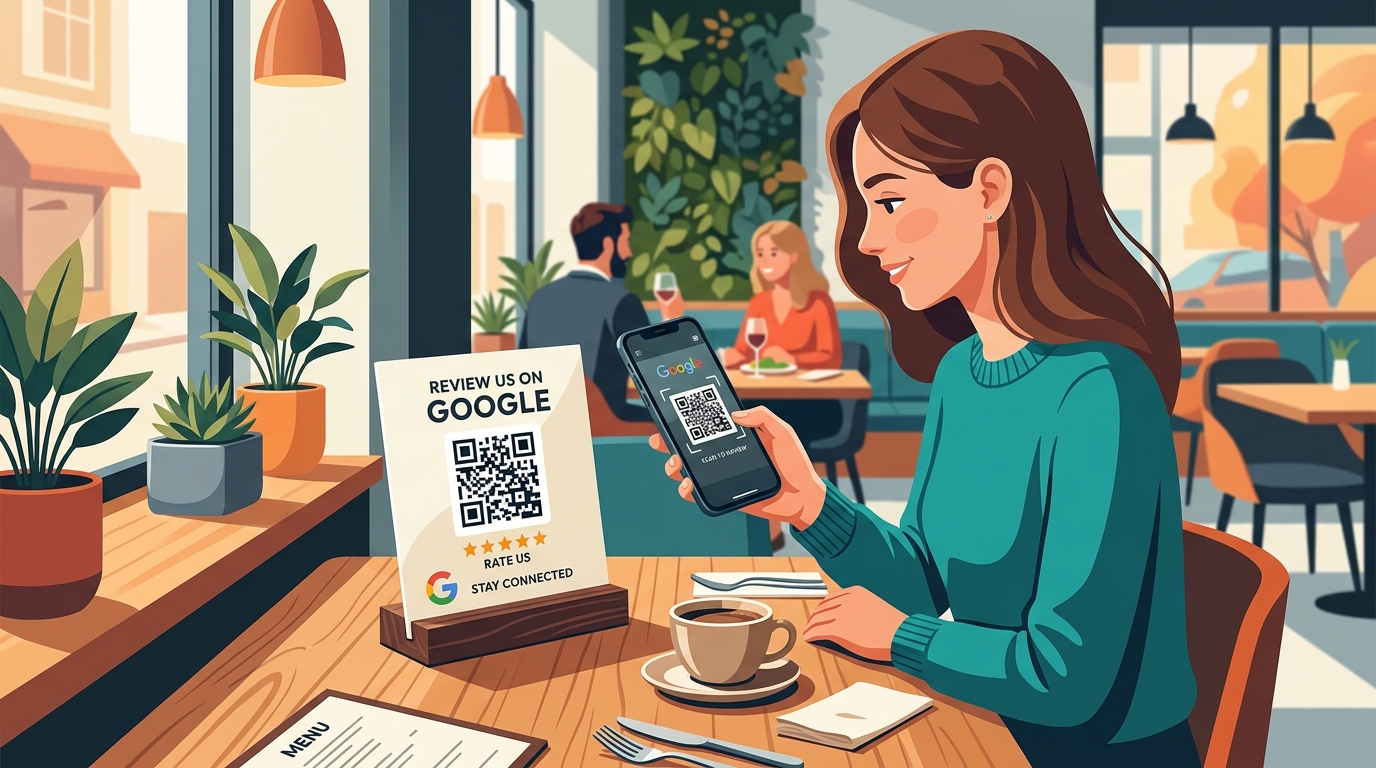
A Google review QR code is one of the fastest ways to get more customer reviews. Instead of asking customers to search for your business on Google, find the review button, and type something, they simply scan a code and land directly on your review page.
If you run a restaurant, clinic, salon, retail store, or any customer-facing business, a printed QR code at your counter or table can quietly collect reviews for you all day long. Here is how to create one.
What Is a Google Review QR Code?
A Google review QR code is a scannable code that links directly to the review form on your Google Business Profile. When a customer scans it with their phone camera, their browser opens your Google review page, ready for them to write and submit a review.
It removes the biggest barrier to getting reviews: the effort of finding your business on Google.
How to Create a QR Code for Your Google Business Review Page
A Google review QR code gives customers a quick way to reach your business's review page without searching for your business manually. You can place the QR code on a counter, table, receipt, business card, packaging, or any other place where customers are likely to see it.
The process is simple: first get your Google review link, turn that link into a QR code, test it, and then print or share the finished code.
Step 1: Find Your Google Review Link
Before creating the QR code, you need the link that takes customers to your Google review page.
If you manage your Google Business Profile, you can usually find the review link through your profile:
- Sign in to the Google account that manages your business.
- Search for your business name on Google while signed in.
- Open your Business Profile management options.
- Look for Ask for reviews or the option to share your review link.
- Copy the review link provided by Google.
Take a moment to check the link before creating the QR code. Open it in a private or different browser window and make sure it leads to the correct business. This is especially important if your business has a common name or you manage more than one location.
Once you have the correct link, you are ready to turn it into a QR code.
Step 2: Generate Your Google Review QR Code
A QR code generator converts your Google review link into a code that customers can scan with their phone camera.
To create one:
- Open a QR code generator that supports website or URL links.
- Select the URL or Website option.
- Paste your Google review link into the provided field.
- Select Generate or the equivalent button.
- Download the finished QR code.
For most printed materials, a high-quality PNG works well. If you plan to use the QR code on large posters, signs, or professionally designed materials, an SVG file can be useful because it can be resized without losing sharpness.
Before downloading, keep the design simple. The QR code needs enough clear space around it so that phone cameras can recognize it easily.
Step 3: Test the QR Code Before Printing
Never assume the QR code works just because it was generated successfully.
Scan it with your phone and check where it takes you. Ideally, test both the digital version and a printed copy because a code that works on a screen may be harder to scan after printing at a small size.
Check these things:
- Does your phone recognize the QR code quickly?
- Does it open the correct Google Business Profile?
- Can the customer easily find the option to leave a review?
- Does the code still work after being printed?
- Does it work from the distance where customers will normally scan it?
If you manage multiple business locations, test each QR code separately to make sure every code points to the correct location.
Step 4: Choose the Right Size and Design
There is no single size that works for every situation. The QR code should be large enough for customers to scan comfortably from where it is displayed.
For example, a small code on a table card can be relatively compact because the customer can hold their phone close to it. A QR code printed on a wall poster needs to be larger because customers may be standing farther away.
Keep these basic points in mind:
- Use a clear, high-contrast design.
- Leave some blank space around the QR code.
- Don't stretch or distort the code.
- Avoid placing it behind glossy plastic or reflective surfaces.
- Make sure the printed version is sharp and not blurry.
- Test the final printed version before producing a large quantity.
A simple QR code that scans reliably is more useful than a heavily designed one that looks attractive but doesn't scan easily.
Step 5: Add a Clear Message
Don't place the QR code on a card or poster without explaining what customers should do.
A short message can make the purpose obvious.
For example:
Had a good experience? Scan to share it on Google.
Or:
We'd love to hear about your experience. Scan to leave a Google review.
Keep the wording friendly and straightforward. The goal is to tell customers what the QR code does without making the message feel like a sales pitch.
Step 6: Put the QR Code Where Customers Will See It
The location of your QR code matters just as much as the code itself. Think about where customers naturally stop before or after using your service.
Place the QR code where customers naturally see it after using your service, such as:
- Restaurants & cafés: Tables or billing counter
- Clinics: Reception or waiting area
- Salons: Checkout counter or reception
- Retail stores: Billing counter or shopping bags
- Hotels: Reception or checkout
- Gyms: Reception or exit area
Make sure the code is clearly visible, easy to scan, and large enough for the distance from which customers will use it.
What If Customers Don't Know What to Write?
A QR code makes it easier to reach your Google review page, but some customers may still hesitate when they see a blank review box.
An AI Google My Business Review Generator can help by turning the customer's own experience into a natural review draft. They can read it, edit it, copy it, and decide whether to post it from their own Google account.
This makes the review process easier without taking the decision away from the customer.
Tips for Getting More QR Code Scans
A well-placed QR code is more useful when customers can see and scan it easily. A few simple details can make the experience smoother.
- Make it easy to scan: Use a suitable size so customers don't have to hold their phone too close.
- Use clear contrast: A dark QR code on a light background is usually easier for phone cameras to recognize.
- Keep the code unobstructed: Avoid placing text, images, or designs over the QR pattern.
- Keep printed codes in good condition: Replace codes that become faded, scratched, folded, or damaged.
- Test it regularly: Scan the displayed code from time to time to make sure it still opens the correct Google review page.
- Choose the right moment: A simple reminder after a customer has completed their purchase or service can make them more likely to scan.
You don't need to place a QR code everywhere. A clear, easy-to-scan code in the right location can be more effective than several codes that customers barely notice.
Related articles:
Frequently Asked Questions
How do I get a Google Business review QR code?
Find your Google review link from your Business Profile, paste it into any free QR code generator, download the code, and print it. Test it before displaying it to customers.
Can I download my Google Business review QR code directly from Google?
Google does not currently provide a ready-made QR code. You need to copy your review link and generate the QR code yourself using a third-party tool.
What size should my review QR code be?
At minimum, print it at 3 cm × 3 cm for close-up scanning (like on a table). For posters or wall displays, go larger — at least 10 cm × 10 cm — so customers can scan from a distance.