If your business does not appear on Google when customers search for it, you are invisible to a large number of potential customers. Creating a Google Business Profile is the fastest way to fix that. It is free, takes about 15 minutes, and puts your business on both Google Search and Google Maps.
Whether you run a restaurant, clinic, salon, retail store, or home service business, this guide walks you through every step of setting up your profile.
What You Need Before Creating Your Profile
It is worth preparing your basic business information before you start. This makes the setup process easier and helps you avoid entering incomplete or inaccurate details.
You should have:
- A Google account that you can use to manage the business
- Your actual business name
- The correct primary business category
- Your business address, if customers visit your location
- Your service areas, if you travel to customers
- A business phone number
- Your website address, if you have one
- Your regular opening hours
- A few genuine photos of your business, products, services, or location
Make sure the information you provide represents your real business. Do not add extra keywords or promotional phrases to your business name simply to target more searches.
How to Create a Google Business Profile Step by Step
Once you have your information ready, you can begin creating or claiming your profile.
1. Sign In to Your Google Account
Start by signing in to the Google account you want to use to manage your business.
It is a good idea to use an account that you will continue to have access to. If several people will help manage the business, you can use Google's available management options rather than sharing your personal account password.
Before creating a new listing, also check whether your business already appears on Google. A profile may already exist even if you did not create it yourself.
If you find an existing listing, follow the available process to claim or manage it instead of creating another profile for the same business.
2. Add or Claim Your Business
After signing in, start the process of adding or managing a business.
Enter your business name and check whether Google finds an existing listing that matches it.
You may see three common situations:
- Your business already has a profile that you can claim.
- Google finds a listing that appears to be your business.
- No existing listing is found, so you can continue creating a new one.
If an existing profile belongs to your business, claiming it is generally better than creating a duplicate listing.
Why Avoid Duplicate Business Profiles?
Creating multiple profiles for the same business can cause unnecessary problems. Customers may see different information, reviews can become confusing, and managing several listings can be difficult.
Before creating a new profile, always search for your business on both Google Search and Google Maps.
3. Enter Your Business Name Correctly
Use the name customers actually know your business by.
For example, if your business is called Green Leaf Dental, enter the real business name rather than something like: Green Leaf Dental – Best Dentist in New York – Affordable Dental Care
Adding keywords, locations, phone numbers, or promotional phrases to the business name just to improve visibility is not a good approach.
Your business name should be clear, accurate, and consistent with how the business is represented in the real world.
4. Choose Your Primary Business Category
Google will ask you to select a category that describes your business.
This is an important step because your category helps Google understand what your business does and which types of searches may be relevant to it.
Choose the category that most closely represents your main business.
| Business | Possible primary category |
|---|---|
| Dental practice | Dentist |
| Restaurant | Restaurant |
| Hair salon | Hair Salon |
| Plumbing company | Plumber |
| Clothing shop | Clothing Store |
| Coffee shop | Coffee Shop |
Don't choose a category simply because you think it has a popular keyword. Pick the category that genuinely describes your business.
You may have opportunities to add additional categories later if they accurately represent other services your business provides.
5. Tell Google Where Customers Can Find You
The next step depends on how your business operates.
If Customers Visit Your Location
If customers regularly visit your storefront, office, clinic, restaurant, or shop, provide the physical address.
Make sure the address is complete and accurate because customers may use it to get directions through Google Maps.
If You Travel to Customers
Some businesses do not have a customer-facing location. For example: plumbers, electricians, cleaners, mobile repair services, delivery businesses, and other service-area businesses.
If you travel to customers instead, you can provide the areas you serve rather than displaying an address where customers cannot actually visit you.
The important thing is to select the setup that matches the way your business operates.
6. Add Your Contact Information
Once your business location or service area is set, Google will ask for contact details that customers can use to reach you.
Add your:
- Business phone number
- Website address, if you have one
Use a phone number that customers can actually reach. If you have a website, check the URL before submitting it to make sure it opens correctly.
These details may appear directly on your Google Business Profile, so accuracy matters. A customer who finds your business through Google should not have to search somewhere else to find the correct phone number or website.
7. Add Your Business Hours
Next, enter your regular opening hours for each day of the week.
This may seem like a small detail, but it is one of the first things customers check when deciding whether to visit a business.
For example, if your profile says you are open until 9 PM but you actually close at 7 PM, a customer could make a trip based on incorrect information.
Before saving your profile, check:
- Which days you are open
- Your opening and closing times
- Whether you have different hours on certain days
- Whether you need to add special hours for holidays
Remember to update your hours when your schedule changes. Keeping this information current is part of properly managing your profile.
8. Add Photos to Your Google Business Profile
Photos help customers understand what your business looks like before they decide to visit or contact you.
You don't need hundreds of images when you first create your profile. Start with a few clear, genuine photos that give customers a useful idea of your business.
Depending on what you do, you could include exterior photos, interior customer areas, products you sell, examples of services, team photos, or workplace settings.
Avoid using misleading or unrelated images. The photos should represent the actual business customers will encounter. You can continue adding useful photos after your profile is created.
9. Complete the Verification Process
Google may require you to verify your business before you can fully manage the profile. Verification helps Google confirm that the person managing the profile is authorised to represent the business.
The verification method you see can vary depending on your business and Google's requirements. For example, Google may offer a method such as Phone or SMS, Email, Video verification, or another method shown in your account.
Follow the instructions presented by Google rather than assuming that you will receive a particular verification option. If Google asks you to provide additional information or evidence, make sure what you submit accurately represents your business.
Why Is Verification Important?
Without completing the required verification, you may not be able to fully manage your Business Profile or access all available features. Once verification is completed, check your profile again to make sure the information you entered is appearing correctly.
10. Review Your Business Profile
After completing the setup, don't immediately move on. Take a few minutes to look at your profile from a customer's perspective.
Check the most important details: Is the name correct? Is the category accurate? Is the address or service area correct? Is the phone number working? Does the website open correctly? Are hours accurate? Are photos relevant? Does it appear correctly on Maps? Can customers leave reviews?
This final check can catch simple mistakes before they cause problems for customers.
What to Do After Creating Your Google Business Profile
Creating the profile gets your business onto Google, but your work doesn't necessarily end there. A Business Profile is more useful when the information stays current and customers can easily interact with your business.
One of the most important areas to focus on is customer reviews. Reviews give potential customers an idea of what other people experienced when dealing with your business. They can also help you understand what customers like and where your business could improve.
Make It Easy for Customers to Leave a Review
Even satisfied customers may forget to leave a review if they have to search for your business and find the review option themselves. Make the process as simple as possible by giving customers a direct way to reach your Google review page.
Depending on how your business communicates with customers, you can:
- Share your Google review link after a completed purchase or service.
- Include the link in a follow-up email, SMS, or WhatsApp message.
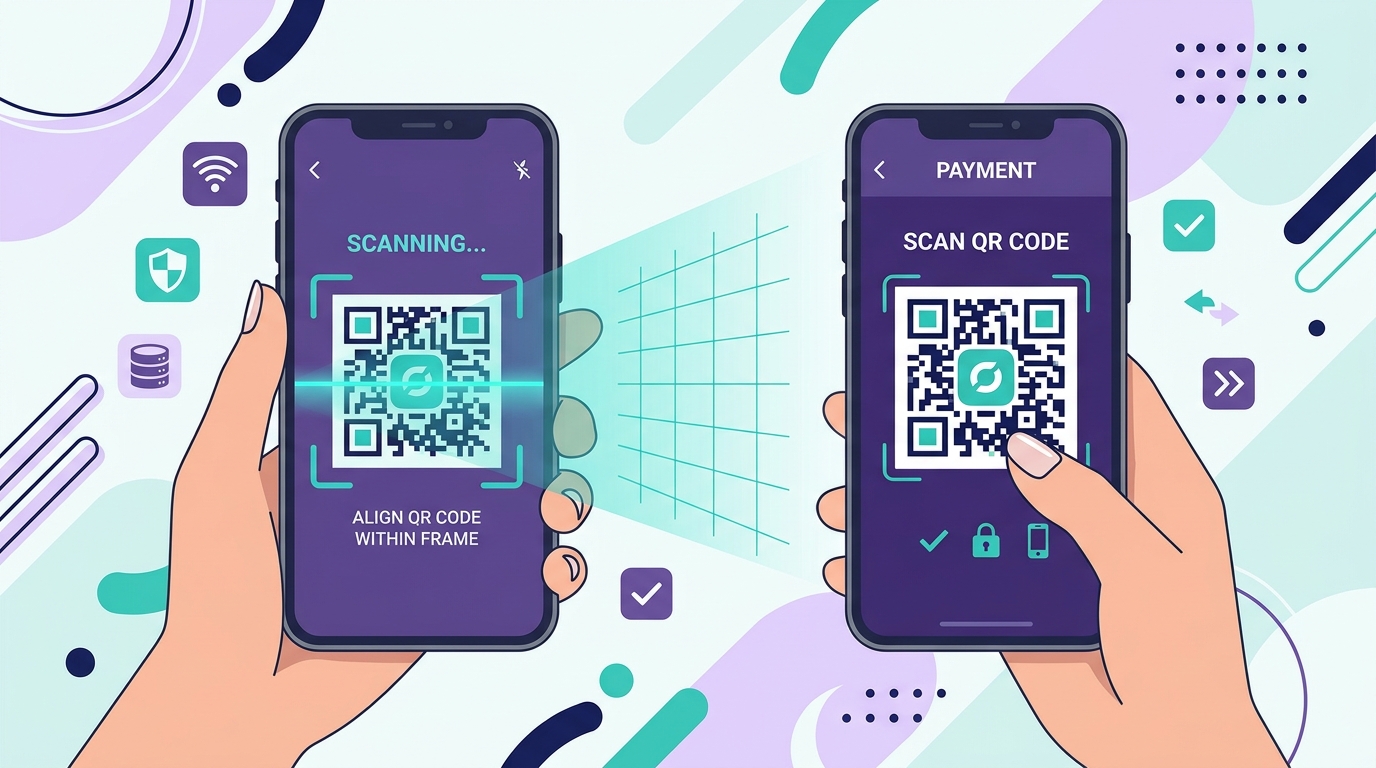
- Display a Google review QR code at your counter, reception desk, table, or checkout area.
- Add a Leave a Google Review button to your website.
- Include the review link or QR code on suitable receipts, invoices, or thank-you cards.
The key is to make the review request part of a natural customer interaction. You don't need to pressure customers or repeatedly ask for reviews. Simply make the option easy to find when they are ready to share their experience.
Make the Review-Writing Process Easier
Getting customers to the review page is only part of the process. Some customers may be happy with your business but hesitate when they see an empty review box because they aren't sure what to say.
An AI Google My Business Review Generator can help with this. For example, a customer can briefly describe their actual experience and use the tool to turn those thoughts into a review draft. They can then read the draft, make any changes they want, and decide whether to post it from their own Google account.
The important part is that the customer's real experience remains the basis of the review, and the customer decides what gets published.
Keep Your Business Information Updated
Your Business Profile should reflect the business as it exists today. Review your profile whenever something important changes, such as opening hours, holiday hours, phone number, website, address, services, or business info.
For example, if you move to a new location but leave your old address on Google, customers may end up at the wrong place. Making occasional checks can prevent these simple problems.
Respond to Customer Reviews
Once customers start leaving reviews, make time to read and respond to them. A short, genuine response to a positive review shows appreciation. A thoughtful response to a negative review gives you an opportunity to address the customer's concern professionally.
Avoid turning responses into advertisements. The purpose is to acknowledge the customer's feedback and show that you are paying attention.
If you receive a review that appears fake or violates Google's policies, you can report it rather than trying to remove it yourself.
Common Mistakes to Avoid
Don't Create Duplicate Profiles
If a profile for your business already exists, try to claim or manage it rather than creating another listing. Duplicate profiles can make your business information and reviews confusing for customers.
Don't Add Keywords to Your Business Name
Use your real business name rather than filling the name with search terms. For example, don't change Green Leaf Dental to Green Leaf Dental Best Dentist Affordable Dental Clinic just because you want to target those keywords.
Don't Use an Incorrect Address
Only provide an address that accurately represents where your business operates and where customers can visit you, when applicable. If you are a service-area business, use the appropriate service-area setup instead.
Don't Leave Old Information on Your Profile
If your hours, phone number, services, or other important details change, update your profile. Customers rely on the information they see on Google when deciding whether to contact or visit a business.
How Long Does It Take to Create a Google Business Profile?
The initial setup can be completed fairly quickly if you already have your business information ready. However, the total time before your profile is fully available depends on Google's verification requirements and the method offered to you.
Some verification processes can be completed relatively quickly, while others may require additional steps. Instead of focusing on a specific number of minutes or days, follow the verification instructions shown in your Google account and wait for Google to confirm the profile.
What Should You Do Once Your Profile Is Live?
Once your profile is active, focus on maintaining it rather than simply leaving it untouched.
A simple routine can include:
- Check your business information regularly.
- Update hours when they change.
- Add useful photos over time.
- Read and respond to customer reviews.
- Make your review link easy for customers to access.
- Encourage genuine customers to share honest feedback.
This turns your Google Business Profile from a basic listing into an active part of your customer experience.
Conclusion
Creating a Google Business Profile gives your business a place to appear when people search on Google and Google Maps. The setup itself is only the beginning. Choosing accurate information, completing verification, adding useful photos, and keeping your details updated will make the profile more useful to potential customers.
Once everything is in place, make it easy for genuine customers to contact you and share their experiences. A direct review link, a QR code, and a simple review-request process can remove unnecessary steps and make feedback easier to collect.
Related articles:
- What Is Google Business Profile?
- How to Get More Google Reviews for Your Business
- How to Edit Your Google Business Profile
Frequently Asked Questions
How do I register my business on Google?
Sign in to your Google account, search for your business to check whether a profile already exists, and then follow Google's process to claim an existing profile or create a new one. You'll need to provide your business information and complete the verification process offered by Google.
How do I add my business to Google Maps?
When you create or claim an eligible Google Business Profile and provide the appropriate location information, your business can appear on Google Maps. You generally don't need to create a separate listing just for Maps.
Is it free to list my business on Google?
Yes. Creating and managing a Google Business Profile is free. You don't need to pay Google simply to have your eligible business listed on Search and Maps.
Can a service-area business create a Google Business Profile?
Yes. Businesses that travel to customers can use a service-area setup instead of displaying a customer-facing business address, provided they meet Google's eligibility requirements.
Can I edit my Google Business Profile after creating it?
Yes. You can update eligible business information after creating your profile. It's a good idea to review your details regularly and make changes whenever your business information changes.