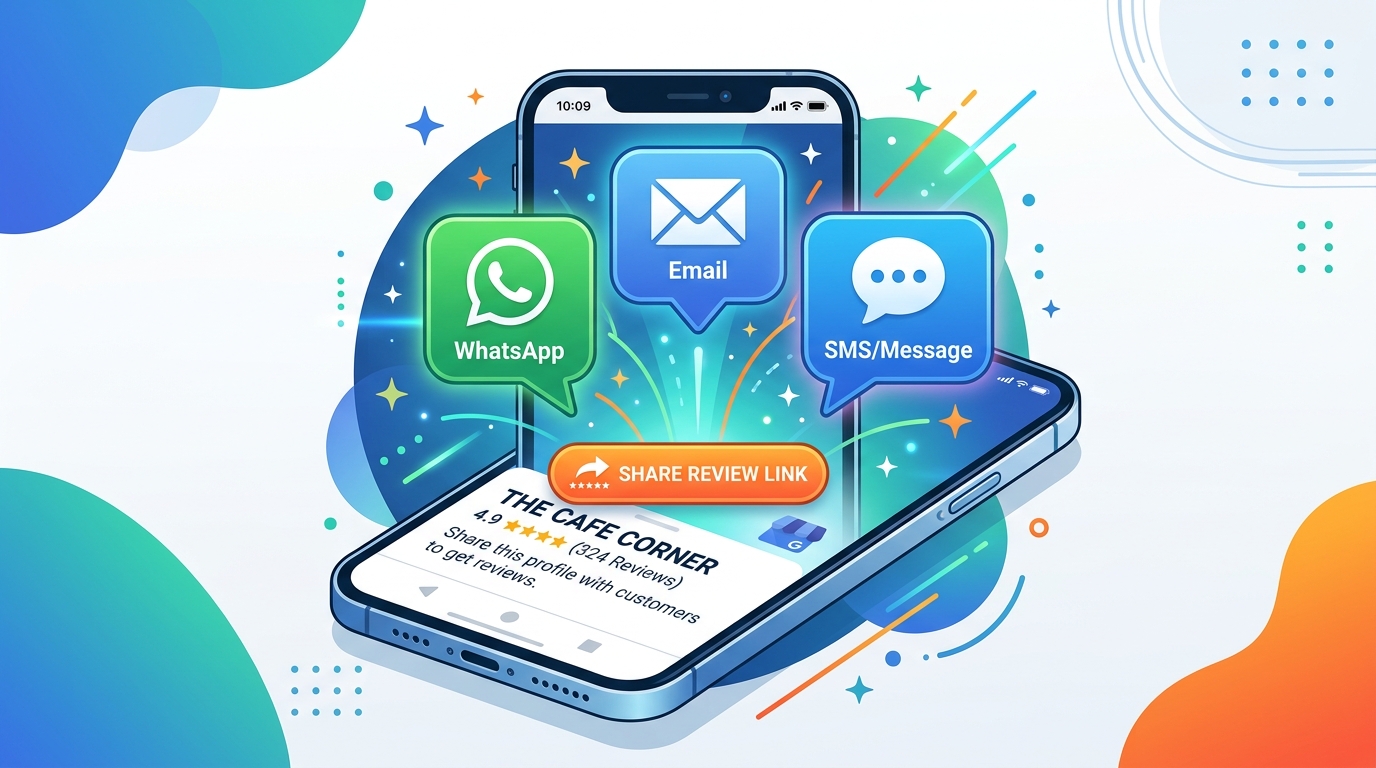
Every Google Business Profile comes with a unique review link. When customers click this link, they land directly on your review form no searching, no scrolling, no confusion. Sharing this link is one of the simplest things you can do to get more reviews.
The problem is that most business owners do not know where to find the link or how to share it effectively. This guide covers both.
What Is a Google Review Link?
A Google review link is a direct link that takes customers to the review area for your business on Google.
When a customer opens the link, they can see your business and, depending on their device and Google account, continue to the option to rate and review your business.
The main advantage is convenience. Customers don't have to search for your business name, find the correct listing, and then look for the review option.
How to Find Your Google Business Review Link
If you manage your Google Business Profile, you can get your review link directly through your business profile.
Method 1: Find Your Link on Google Search
- Sign in to the Google account that manages your Business Profile.
- Search for your business name on Google.
- Open your Business Profile management options.
- Look for Ask for reviews or the option to get more reviews.
- Google will provide a shareable review link.
- Click Copy to save the link.
Before sharing it with customers, open the link yourself and make sure it takes you to the correct business.
Method 2: Get the Link From Your Business Profile
You can also access your review-sharing option through your Google Business Profile management area.
Select the business you want to manage and look for the option that allows you to ask customers for reviews or share your review link. Copy the link provided by Google and keep it somewhere convenient so you can use it whenever you need it.
The exact wording and location of these options can change as Google updates its Business Profile interface, so you may see slightly different labels depending on how you're accessing your profile.
How to Share Your Google Business Review Link
Once you have your Google review link, you can share it through the channels your customers already use. The best option depends on how you normally communicate with them.
Share Your Google Review Link on WhatsApp
If you regularly communicate with customers on WhatsApp, sending your review link after a purchase, appointment, or service is a simple option.
Keep the message short and friendly:
Thank you for visiting us! If you have a moment, we'd appreciate you sharing your experience on Google: [review link]
There is no need for a long message. A clear request and a direct link make it easy for the customer to leave feedback.
Share the Link by Email
Businesses that communicate with customers by email can include the review link in a follow-up message after a completed service, appointment, order, or visit.
For example:
We hope you enjoyed your experience with us. If you'd like to share your feedback, you can leave a Google review here: [review link]
You can also include the link in a regular customer follow-up email or add a Leave a Google Review link to your email signature.
Add the Review Link to Your Website
Your website is another convenient place to give customers access to your Google review page.
Consider adding a clear Leave a Google Review button to relevant areas such as:
- Your homepage
- Contact page
- Thank-you page
- Customer feedback section
Use clear wording so visitors know that clicking the button will take them to Google to share their experience.
Share the Link by SMS
If your business sends appointment reminders, order updates, or follow-up messages by SMS, you can include the review link after the customer has completed their visit or purchase.
Keep the message brief:
Thanks for visiting us today. We'd love to hear about your experience: [review link]
A short message works well for SMS because customers can quickly understand the request and open the link.
Add the Link to Receipts and Invoices
If you provide customers with digital or printed receipts, invoices, or bills, you can include a short request along with your Google review link.
For printed materials, a Google review QR code can be even more convenient. Customers can scan the code with their phone instead of typing a web address.
This works particularly well for restaurants, retail stores, salons, clinics, and other businesses where customers are already holding their phones while completing a purchase or visit.
Review Link vs. Review QR Code
A review link and a review QR code serve the same purpose — they take customers to your Google review form. The difference is how they are shared:
| Review Link | Review QR Code |
|---|---|
| Best for digital sharing (WhatsApp, email, SMS) | Best for physical locations (counter, table, poster) |
| Customer clicks the link | Customer scans the code with their phone |
| Easy to include in messages | Easy to print and display |
Most businesses benefit from using both. Share the link digitally and display the QR code at your location.
How to Make the Review Process Even Easier
A review link removes the hassle of finding your business on Google, but some customers may still hesitate when they reach the review box.
If customers often say they want to leave a review but don't know how to start, you can give them a simple way to turn their own thoughts into a review before they continue to Google. AI Google Review Generator can be used as an optional step alongside your existing review link.
Conclusion
Your Google review link is free and takes less than a minute to find. The key is to share it where your customers already are WhatsApp, email, SMS, your website, and printed materials. The easier you make it, the more reviews you will receive.
Related articles:
Frequently Asked Questions
How do I find my Google review link?
Sign in to the Google account that manages your Business Profile, search for your business on Google, and select Ask for reviews. Google will provide a shareable link that you can copy and send to customers.
How do I share my Google Business review link?
You can share the link through WhatsApp, email, SMS, your website, or printed materials. Choose the channels your customers already use so they can reach your review page easily.
Can I create a QR code from my Google review link?
Yes. You can turn your Google review link into a QR code and display it at your counter, reception desk, table, receipt, or other customer touchpoint. Customers can scan the code with their phone to access your review page.
Can I add my Google review link to my website?
Yes. You can add a Leave a Google Review button to your homepage, contact page, thank-you page, or another relevant section of your website.
Can I share my Google review link on WhatsApp?
Yes. WhatsApp is a convenient way to send the link after a customer's visit, purchase, or appointment. Keep your message short and ask customers to share their genuine experience.
What is the difference between a Google review link and a QR code?
A review link is mainly useful for digital channels such as WhatsApp, email, and SMS. A QR code is more useful for physical locations because customers can scan it directly from a table, counter, poster, or receipt.